Fake Chat logoFake Chat logoFake Chat
  • Examples
  • Pricing

Fake Chat Maker

Use the fake chat to storyboard a scene that unfolds through messages. Add a fictional exchange and the names of its participants, edit the live preview, and download a conversation screenshot for your project.

Free PNG exports. Pro for animation.

Open the editorSee how it works

Your content, visualized

See your content take shape

Start with editable names, text, and visual details. The finished preview brings those choices into a familiar layout, ready for your presentation or next video.

Fake Chat

Two sides. One good story.

1

Editable content

Selected platform
WhatsApp
Name
Alex Chen
Incoming message
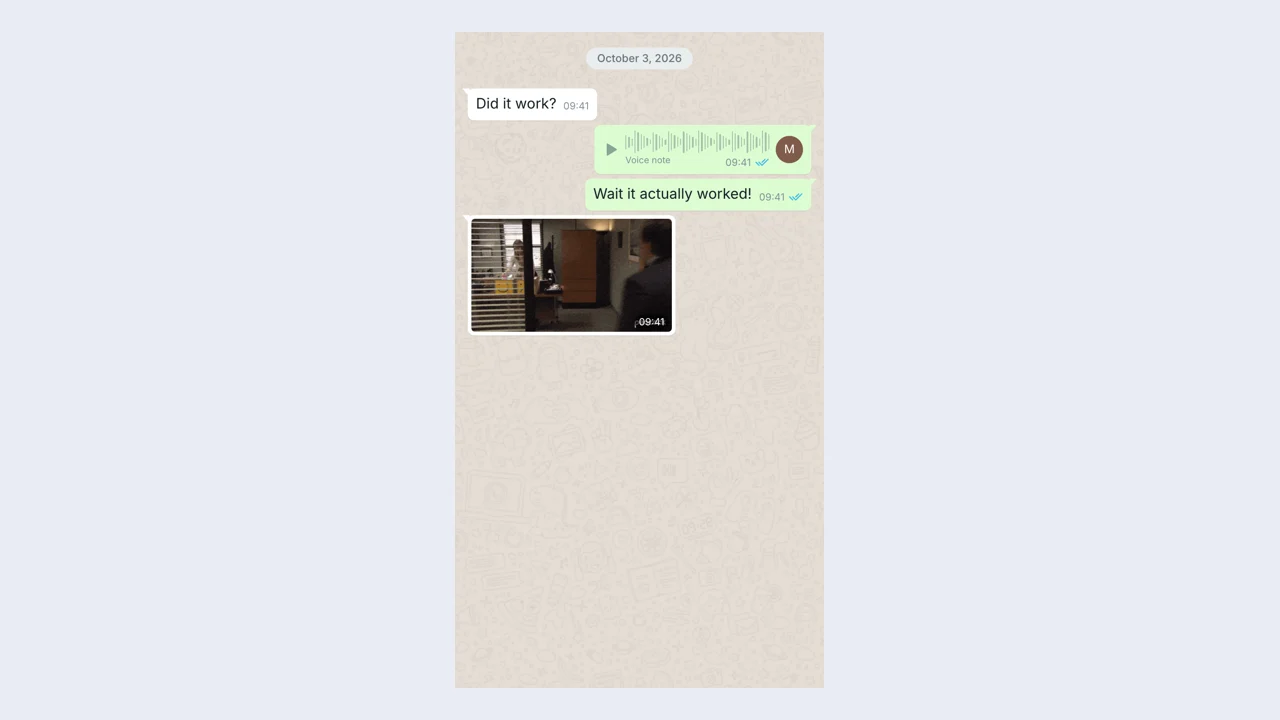
Did it work?
Outgoing message
Wait it actually worked!
Message time
09:41
2Finished PNG
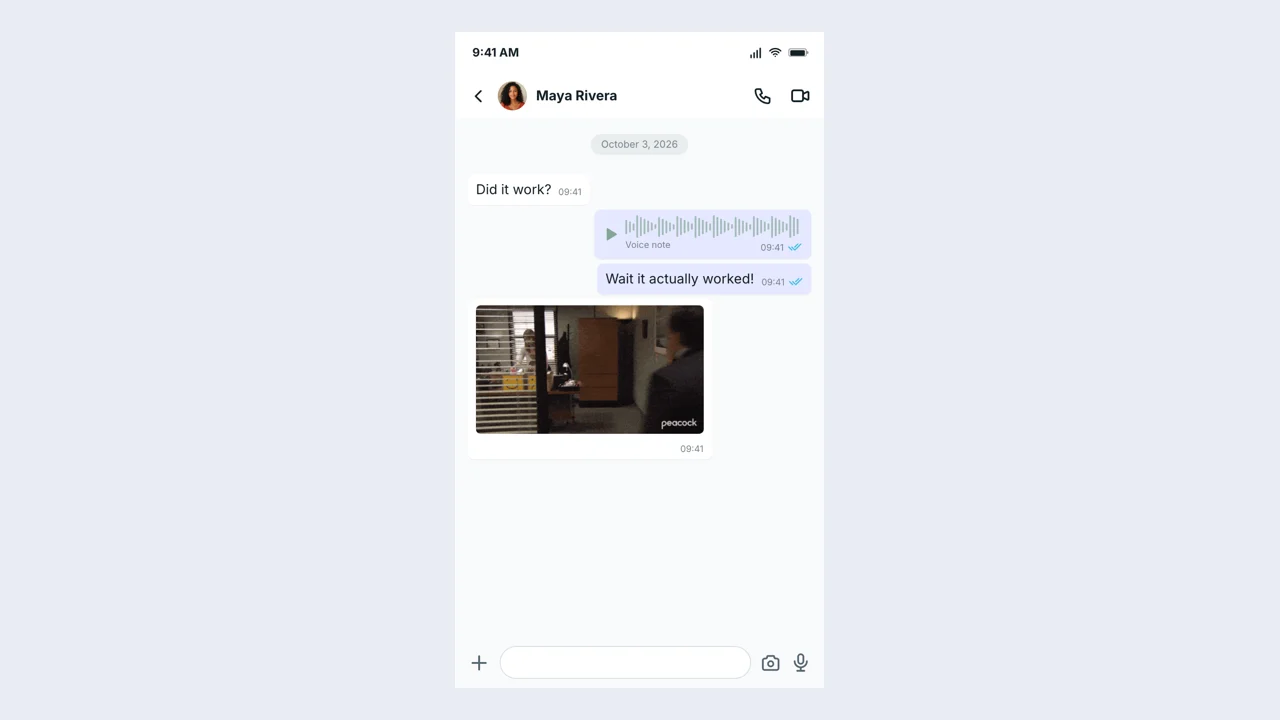
Fake Chat example with the same text and details shown alongside

How the fake chat works

Open the editor

Start with your content

Open the preset and add a fictional exchange and the names of its participants. Establish the main idea before adjusting the smaller visual details.

1

Adjust and preview the scene

Adjust sender direction, message ordering, attachments, timestamps, and group names. Check the preview while editing before choosing the export that fits your project.

2

Download and keep an editable copy

Export the finished conversation screenshot as a PNG, then download a project file if you want to return to the same editable scene later.

3

Build your scene with the fake chat

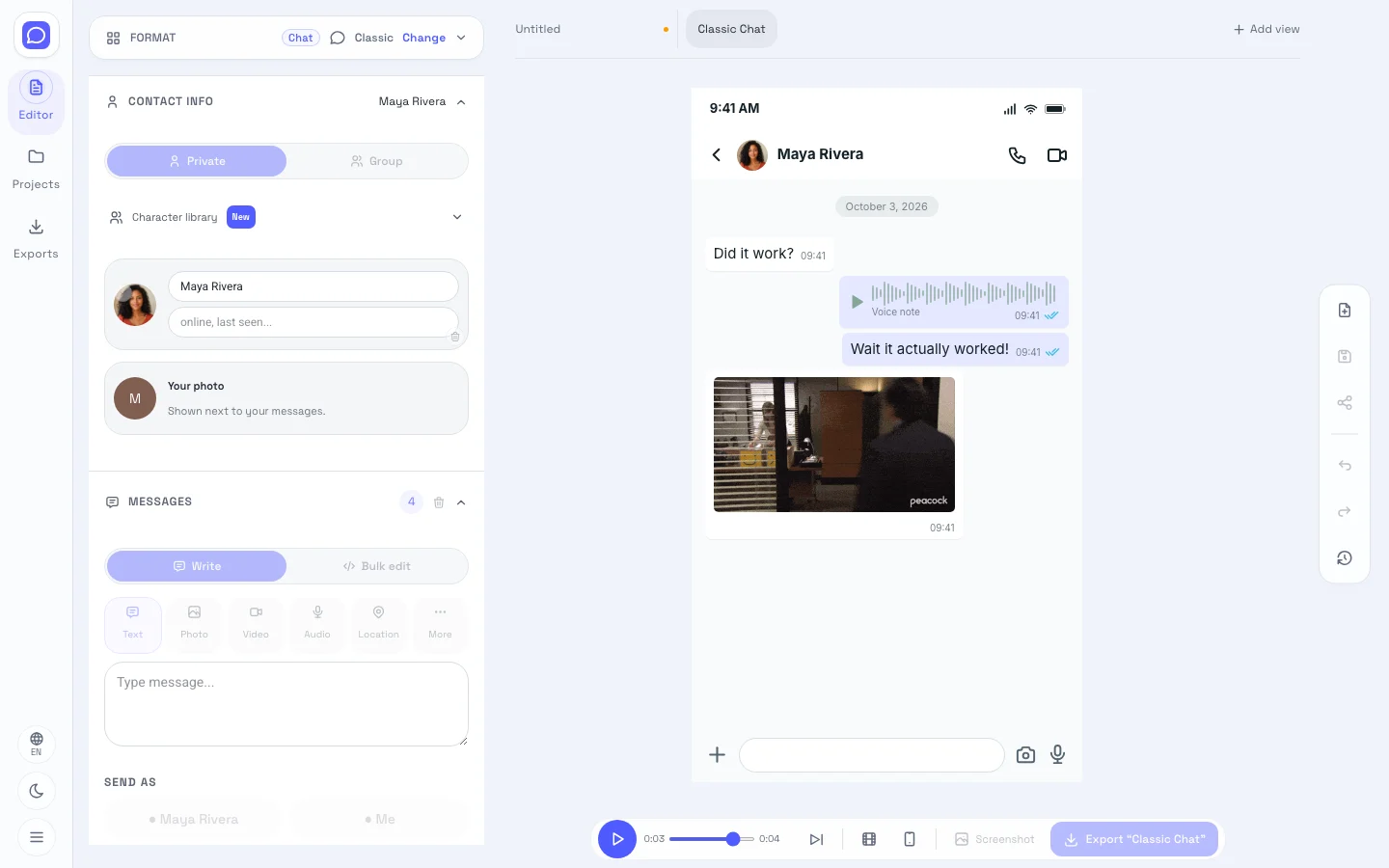
messaging editor showing editable fields beside the conversation screenshot preview

A fake conversation maker for storyboards

Add a fictional exchange and the names of its participants in the fake chat. Review the opening content first, then refine the surrounding details so a viewer can understand the intended conversation screenshot.

Open the editor
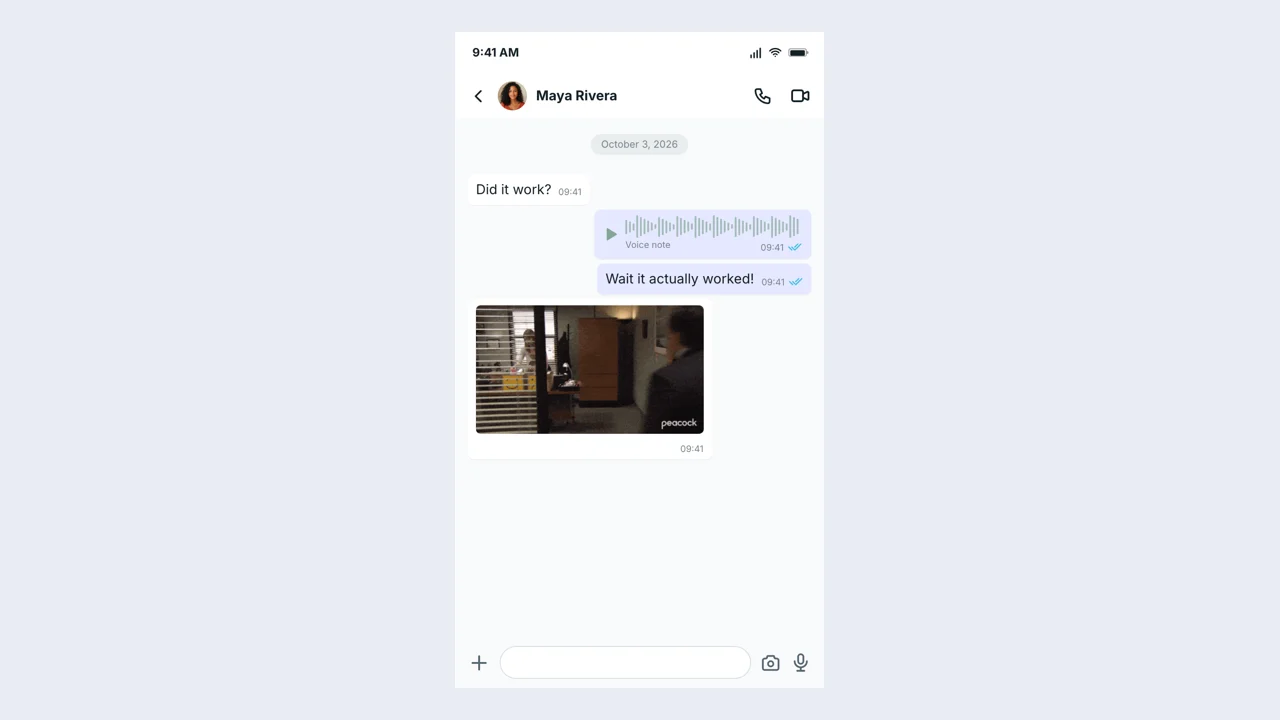
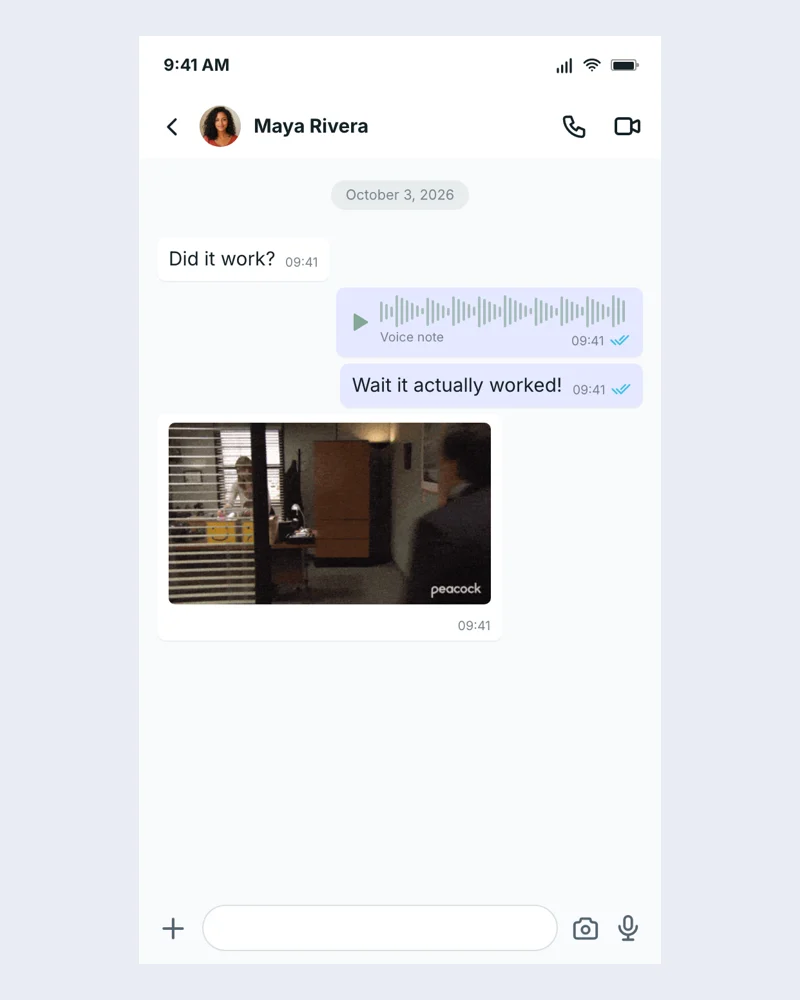
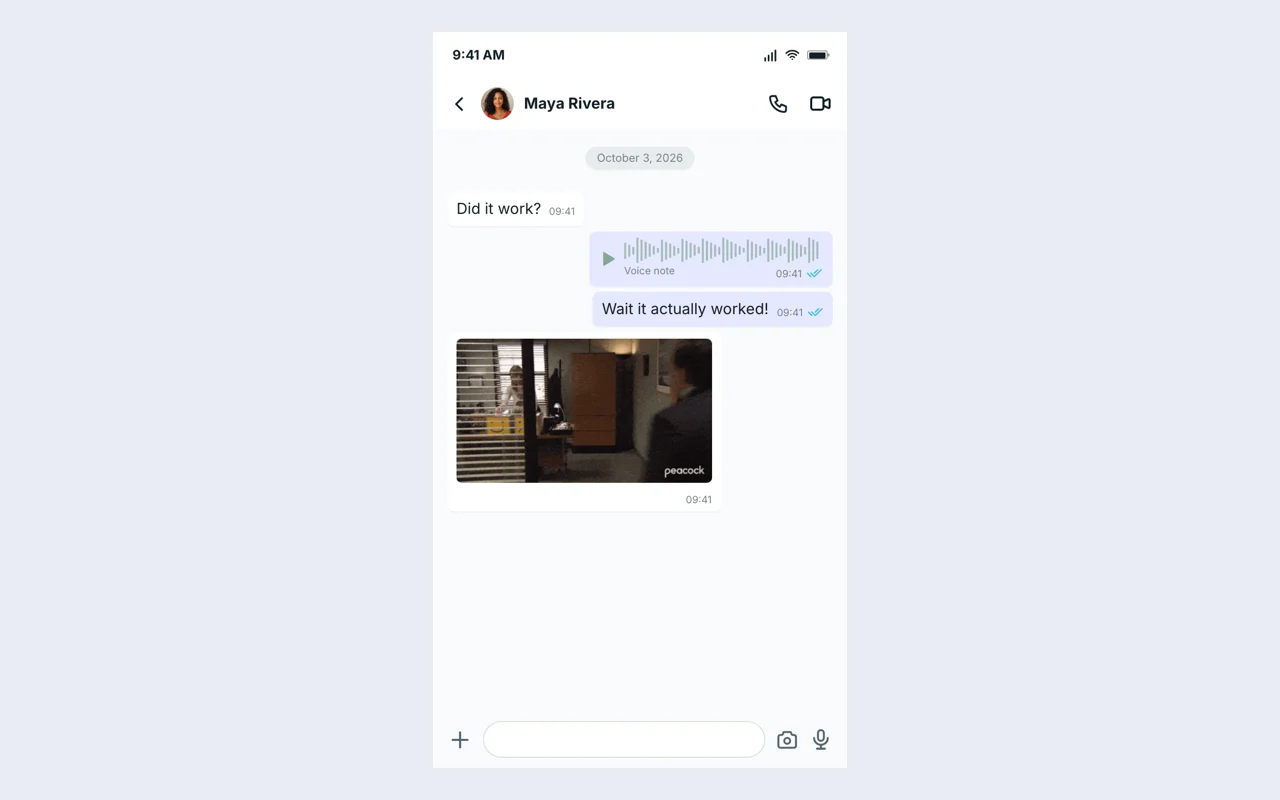
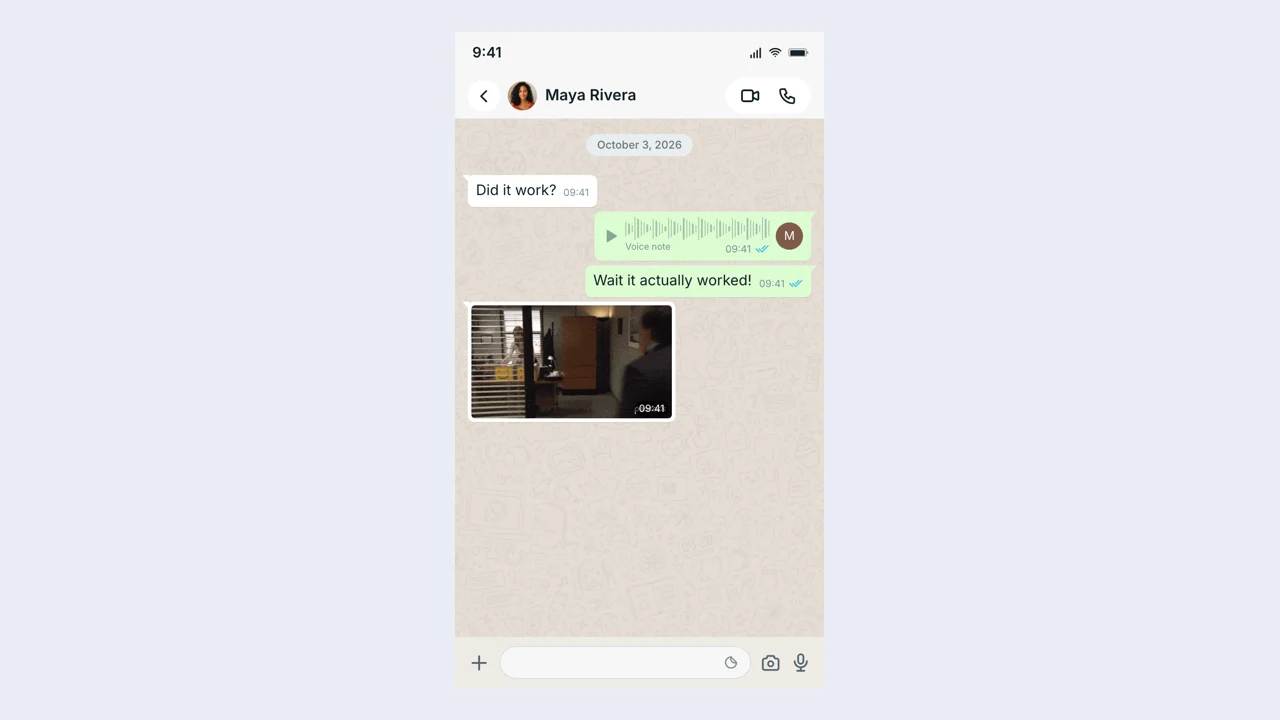
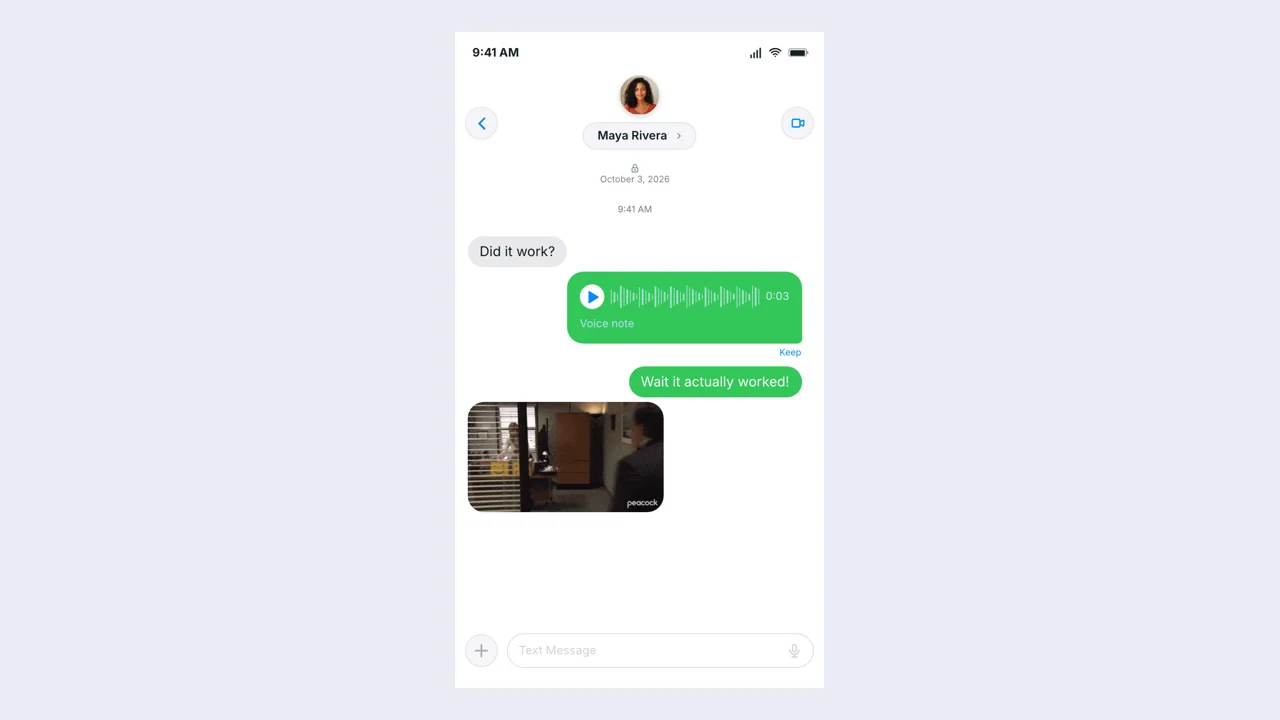
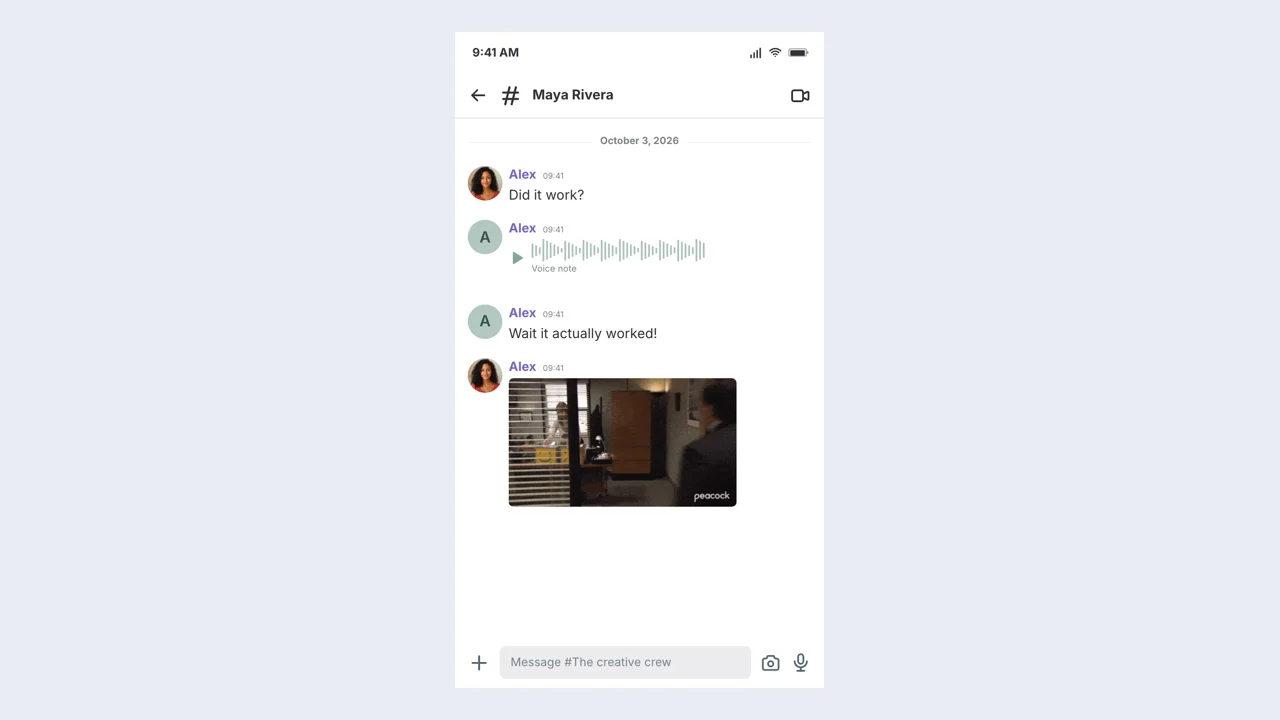
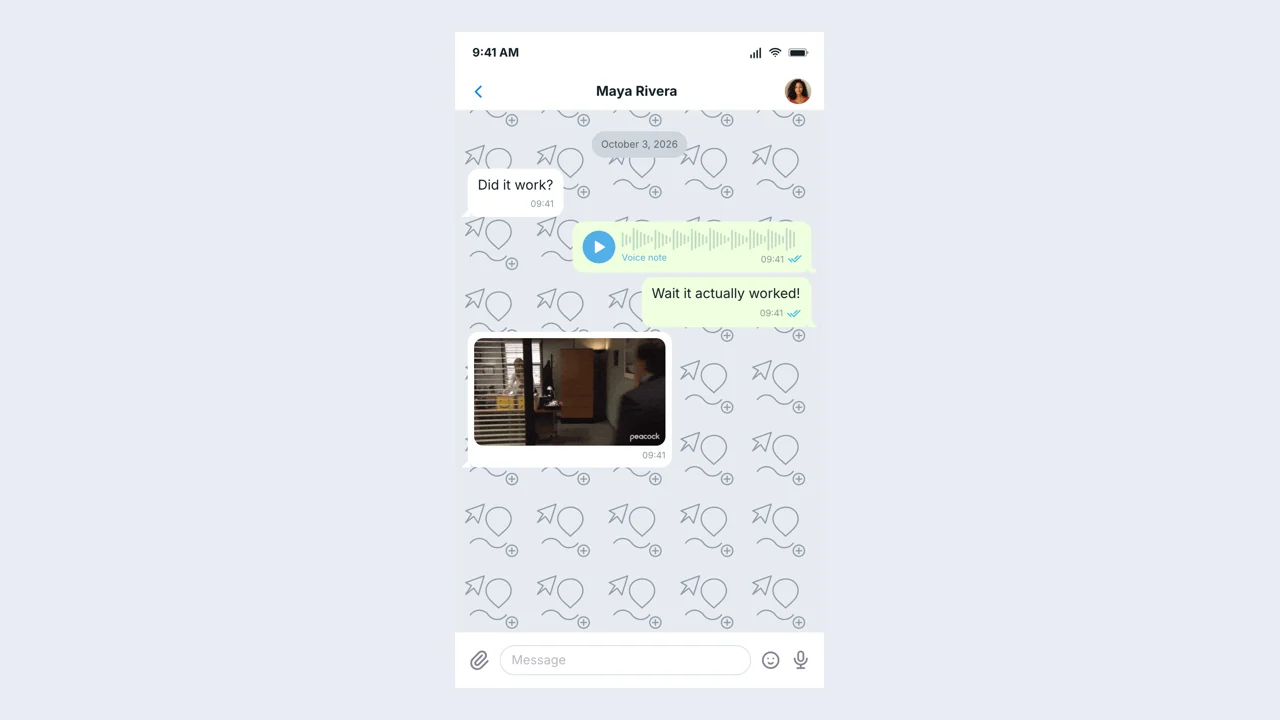
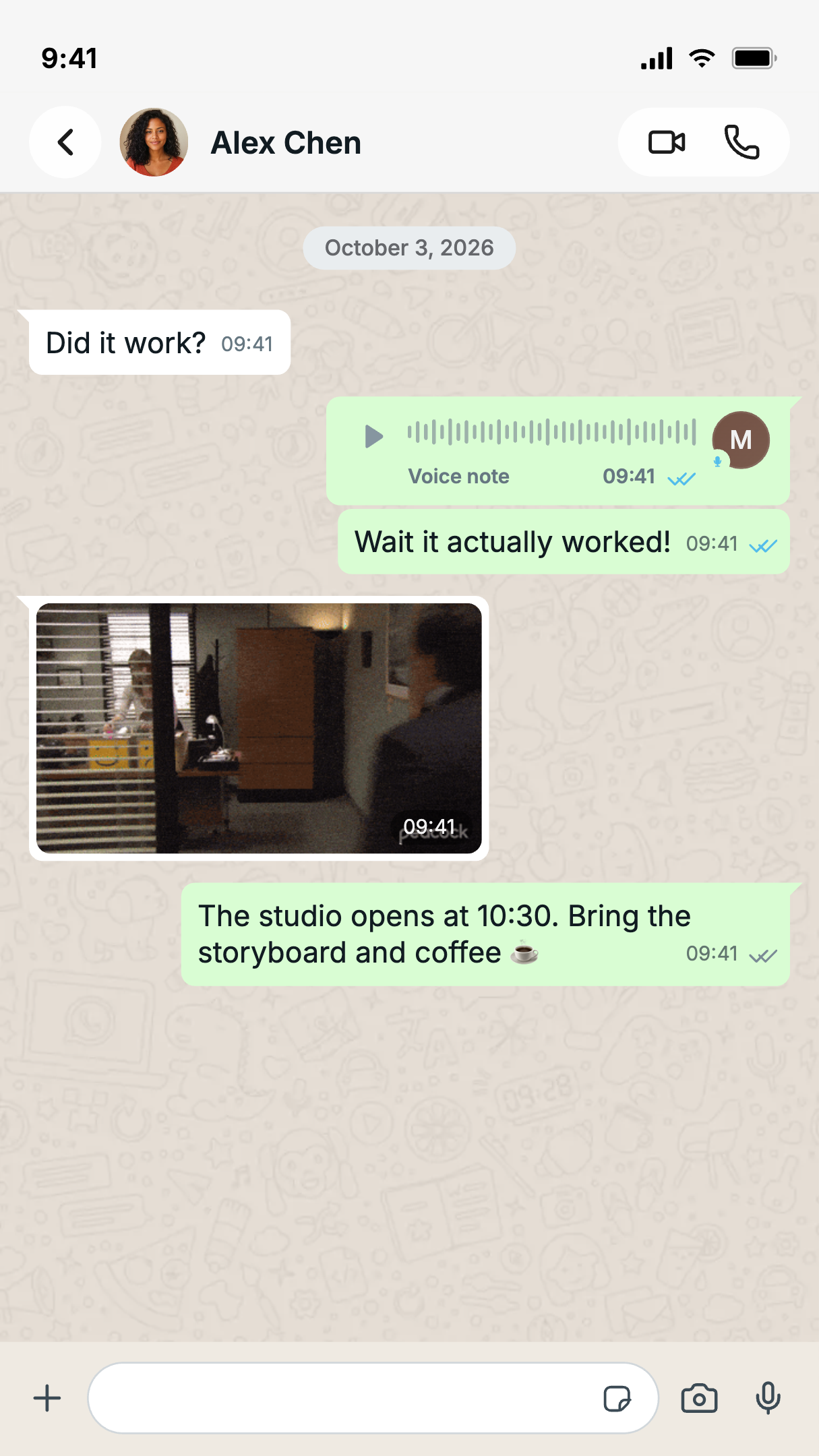
Example messaging conversation screenshot from the editor

Choose the details that matter

The fake chat includes sender direction, message ordering, attachments, timestamps, and group names. Match these settings to the fictional situation, keeping the important content readable when your finished image is displayed at a smaller size.

Customize your scene
Live messaging preview in the screenshot workspace

Refine the scene before downloading

Check the fake chat preview as you edit. Choose the platform before refining the dialogue, because bubble widths and header details affect how each line reads. Use Undo and Redo to compare recent changes before deciding which version to export.

Preview your idea
Example messaging conversation screenshot produced by the editor

Take your conversation screenshot into the project

Download a free PNG from the fake chat for a slide, storyboard, or video layout. Choose an export scale, check the saved image, and keep a project file for later revisions.

Create a screenshot

Why use a fake chat?

The fake chat brings content and presentation into one workflow. Build a conversation screenshot around your idea, then change the details without starting the design again.

Keep the creative decisions yours

A fake chat maker lets you write the scene, choose its participants, and edit the details that shape its meaning before anyone sees the final graphic.

Explain the scene at a glance

Use the fake chat maker to distinguish each speaker through names, avatars, and message direction. These cues let an audience follow the exchange without an added explanation.

Example messaging conversation screenshot with editable fictional content

Compare revisions without rebuilding

Try another line in the fake chat, then compare the changed wording with the surrounding conversation. Recent edit history helps you restore an earlier draft without rebuilding the scene.

Make an asset you can reuse

Export a free PNG from the fake chat for your presentation or edit. Save the editable project too when a future version will need different wording or visual details.

Open the editor
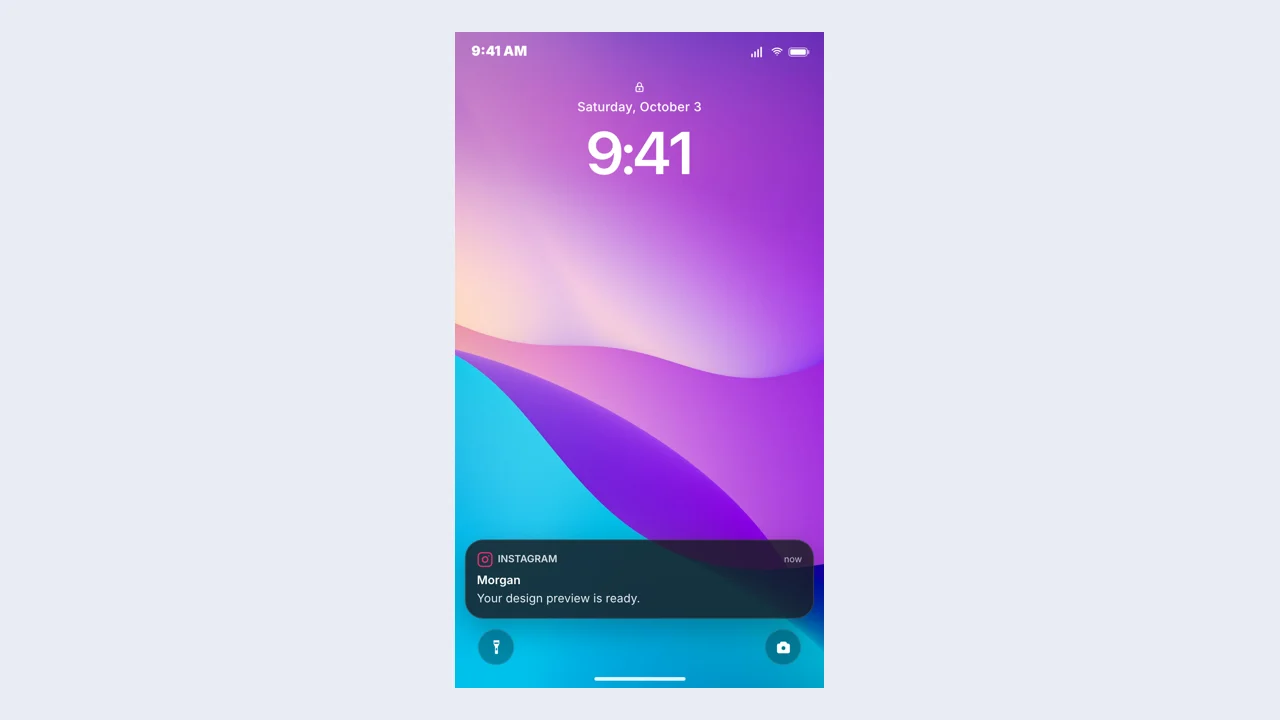
Put the fake chat to work

Actual messaging conversation screenshot example exported from this editor

Writers

Let dialogue reveal the next scene

A screenwriter can use the fake chat maker to storyboard a scene that unfolds through messages. Place the turning point in the message sequence, then check whether the exchange makes sense without narration.

Chats & messages

Fake WhatsApp Chat example: a finished fictional chat sceneOpen generator

Fake WhatsApp Chat

Fake Text Message example: a finished fictional chat sceneOpen generator

Fake Text Message

Fake Discord Message example: a finished fictional chat sceneOpen generator

Fake Discord Message

Fake Screenshot example: a finished fictional chat sceneOpen generator

Fake Screenshot

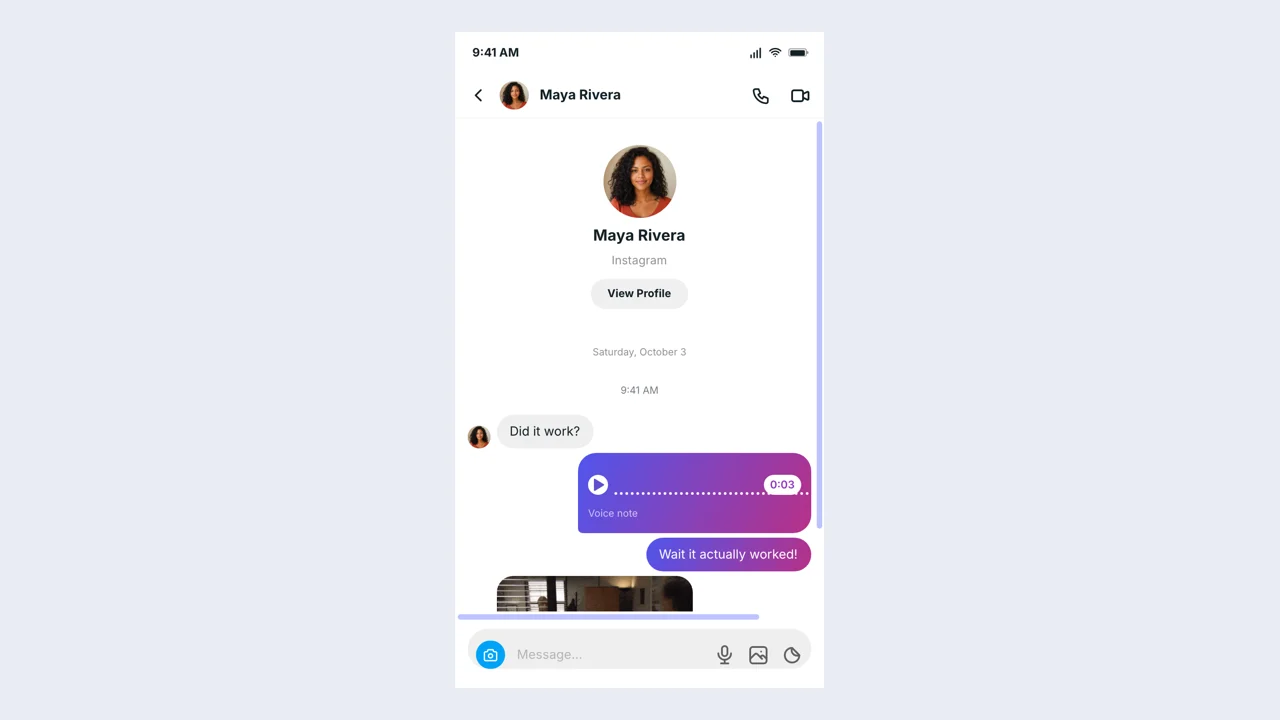
Instagram Fake Chat example: a finished fictional chat sceneOpen generator

Instagram Fake Chat

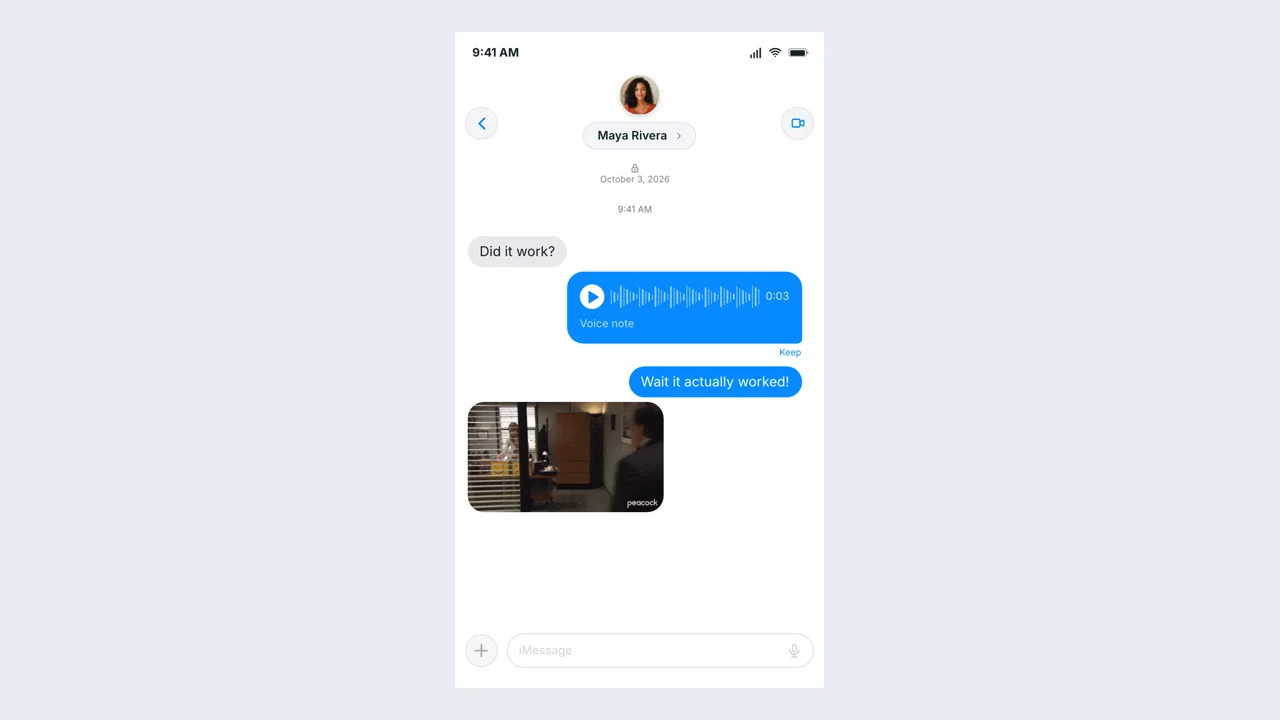
Fake iMessage example: a finished fictional chat sceneOpen generator

Fake iMessage

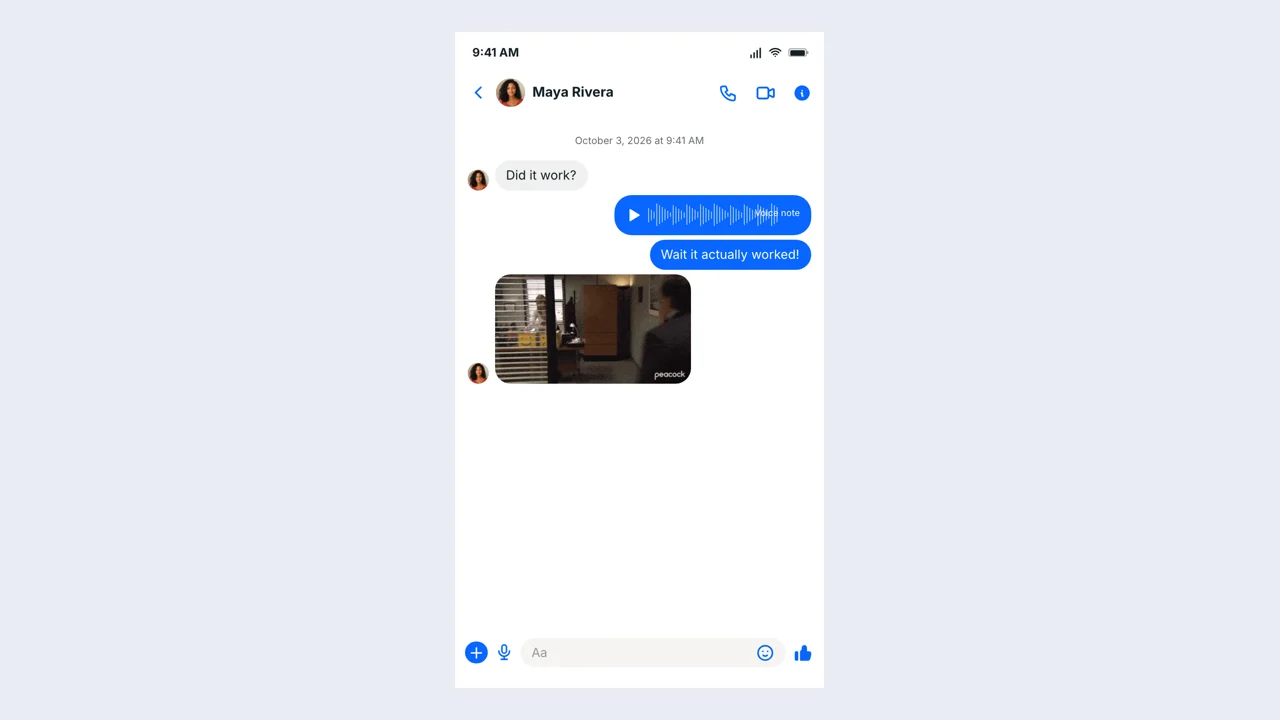
Fake Messenger example: a finished fictional chat sceneOpen generator

Fake Messenger

Fake Telegram Chat example: a finished fictional chat sceneOpen generator

Fake Telegram Chat

Posts & comments

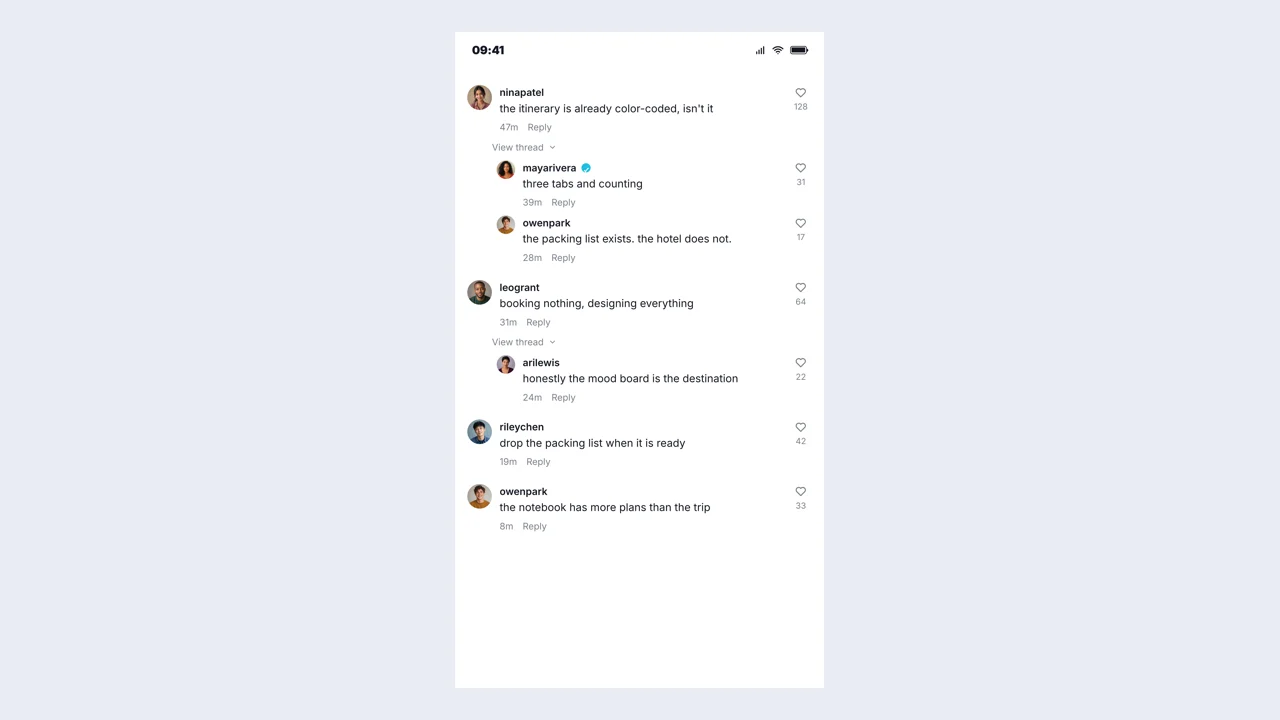
TikTok Comment Generator example: a finished fictional comments sceneOpen generator

TikTok Comment Generator

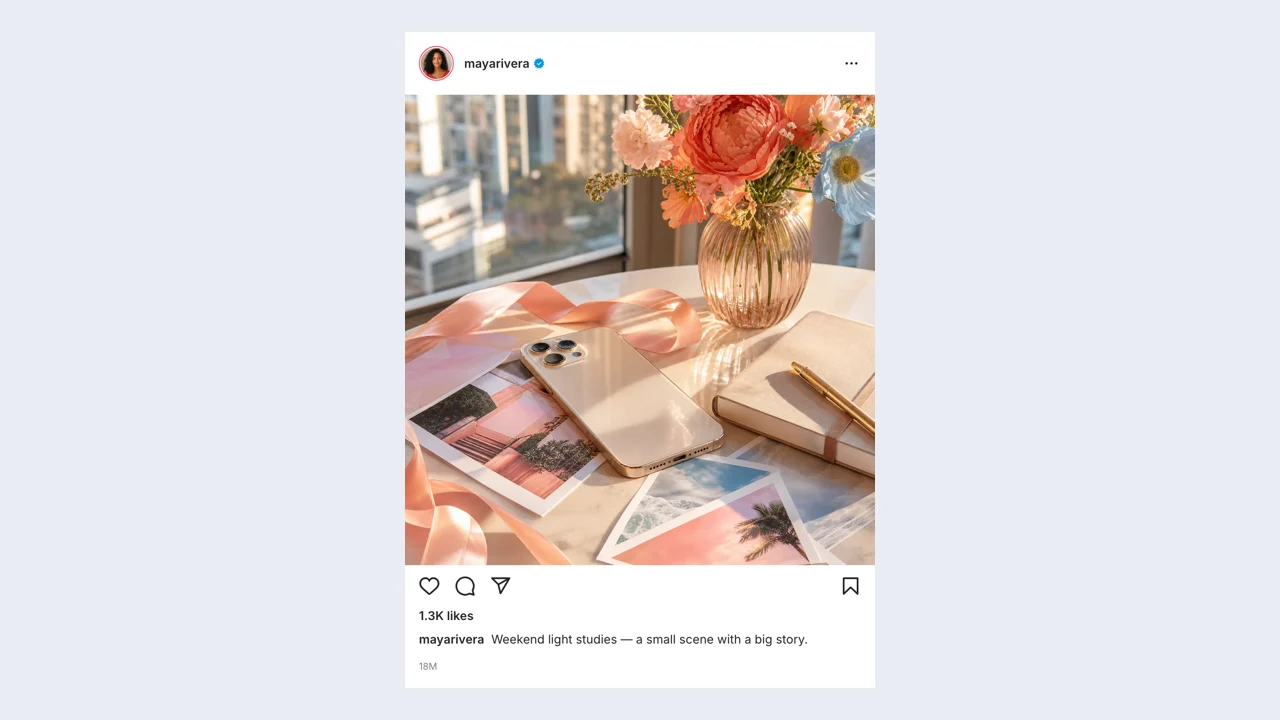
Fake Instagram Post example: a finished fictional post sceneOpen generator

Fake Instagram Post

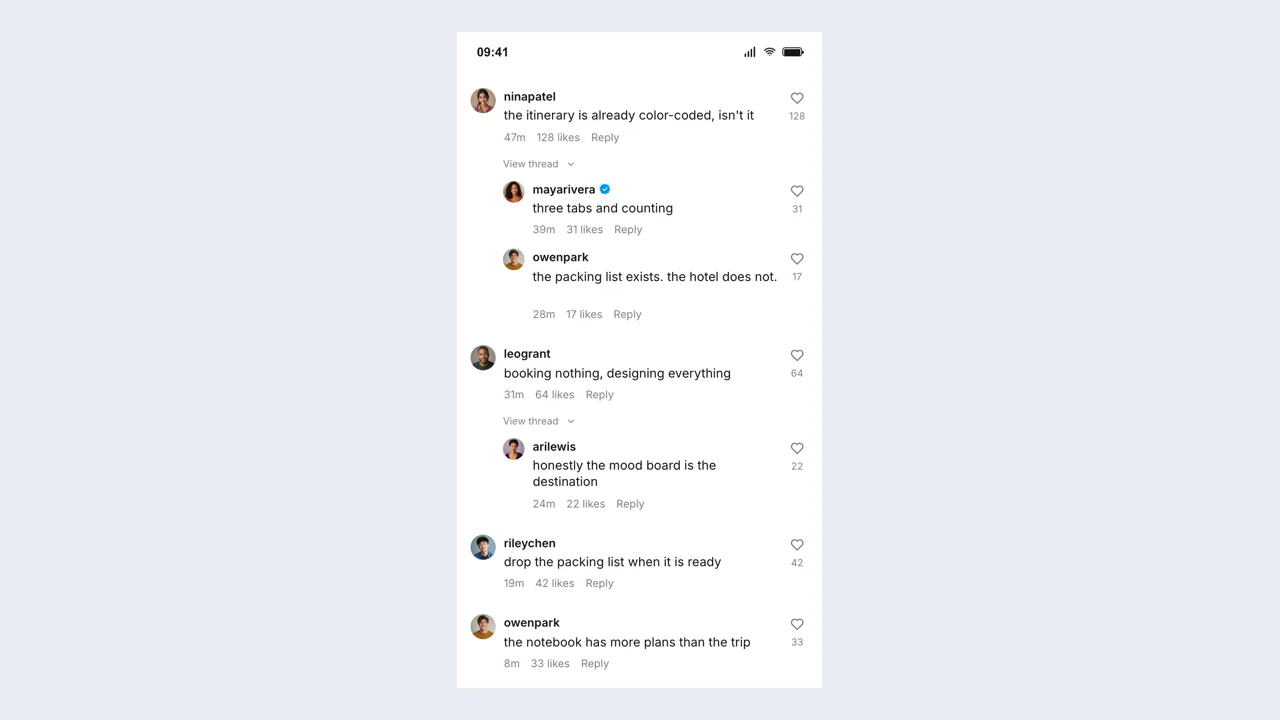
Instagram Comment Generator example: a finished fictional comments sceneOpen generator

Instagram Comment Generator

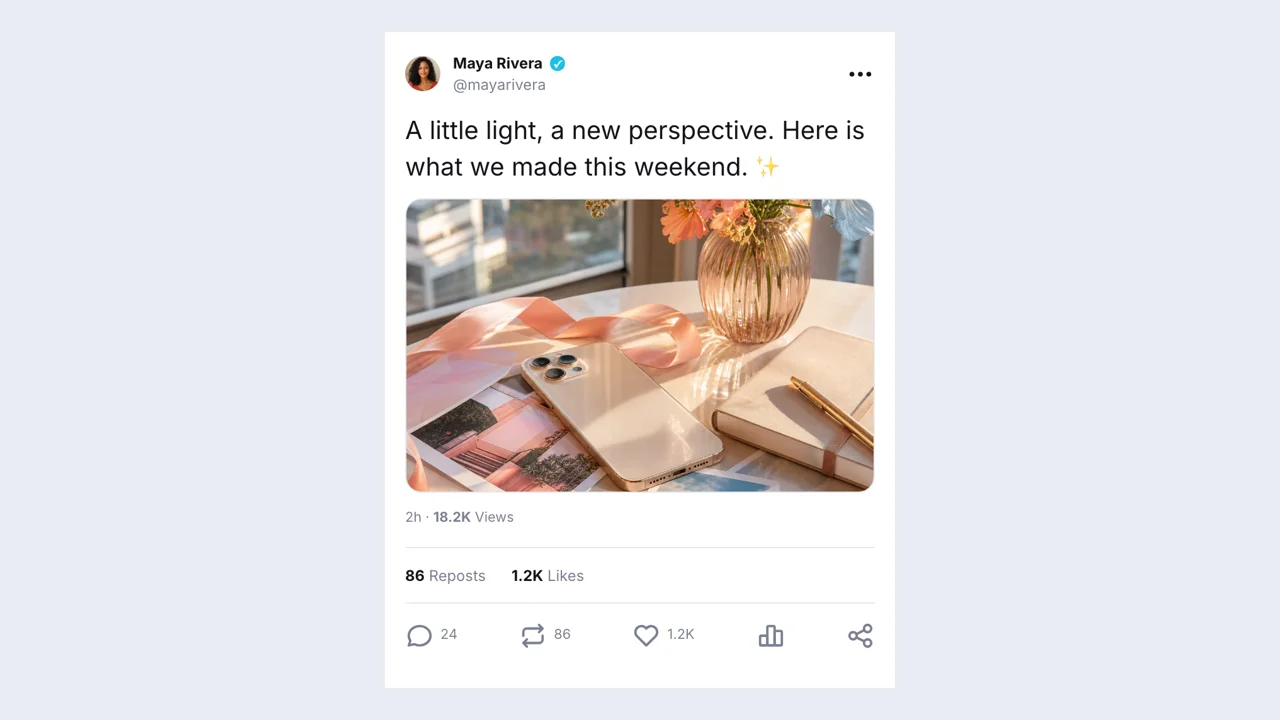
Fake Twitter Post example: a finished fictional post sceneOpen generator

Fake Twitter Post

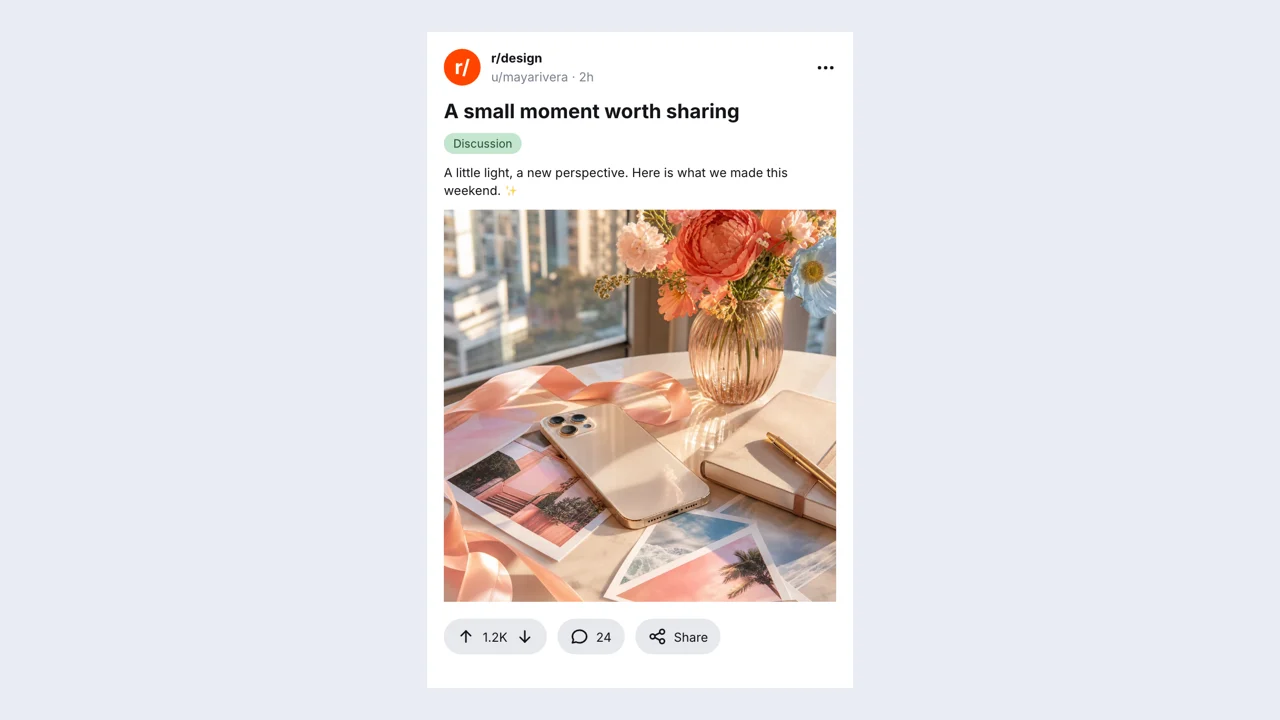
Reddit Post Generator example: a finished fictional post sceneOpen generator

Reddit Post Generator

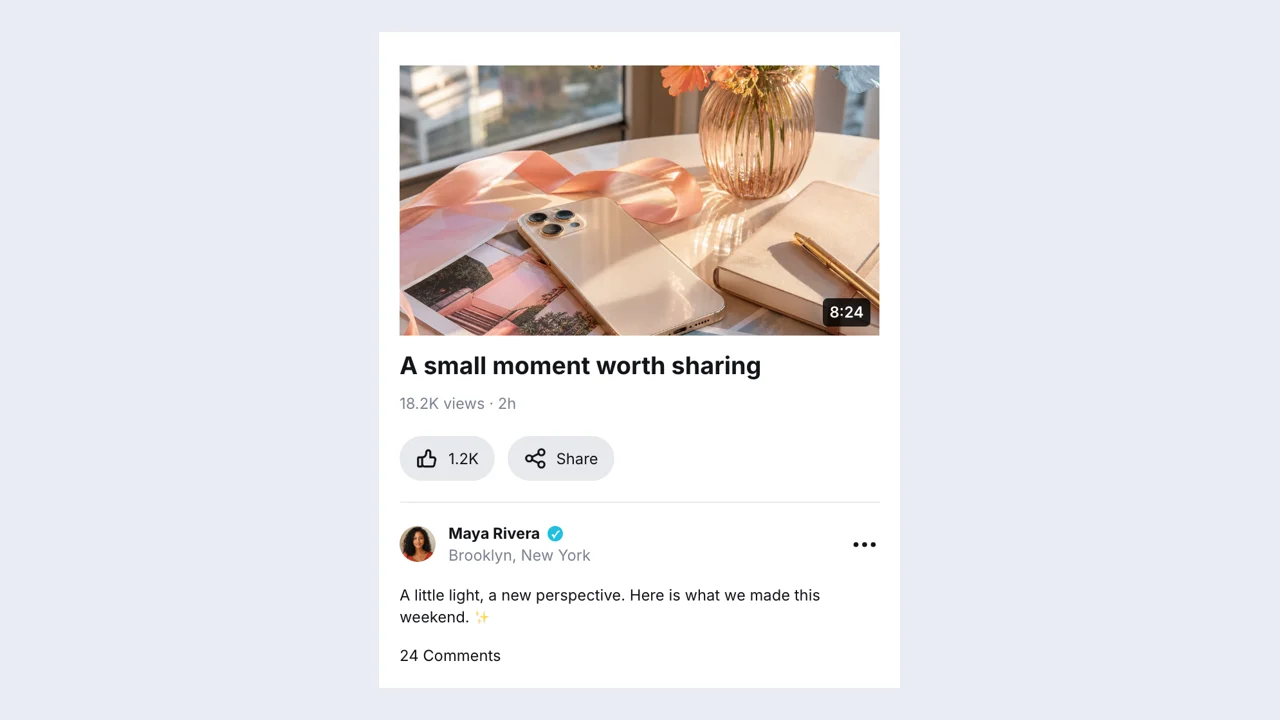
Fake YouTube Video Post example: a finished fictional post sceneOpen generator

Fake YouTube Video Post

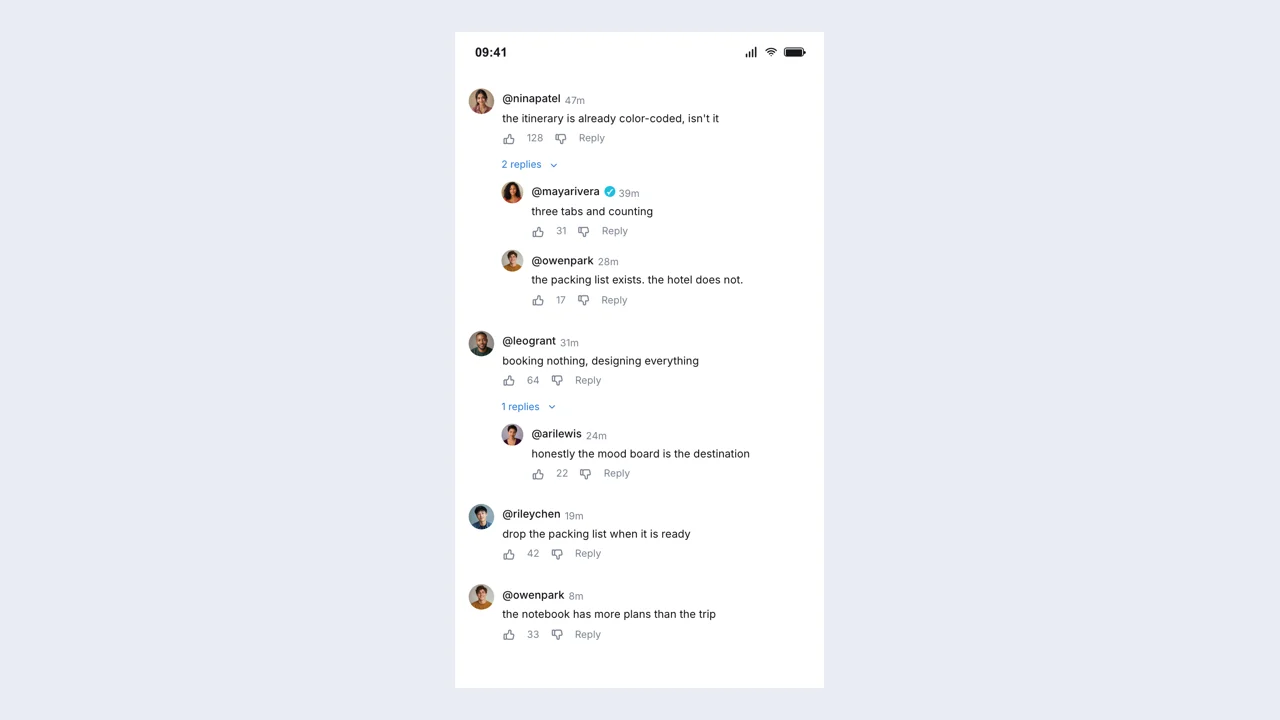
Fake YouTube Comment Generator example: a finished fictional comments sceneOpen generator

Fake YouTube Comment Generator

Stories & stickers

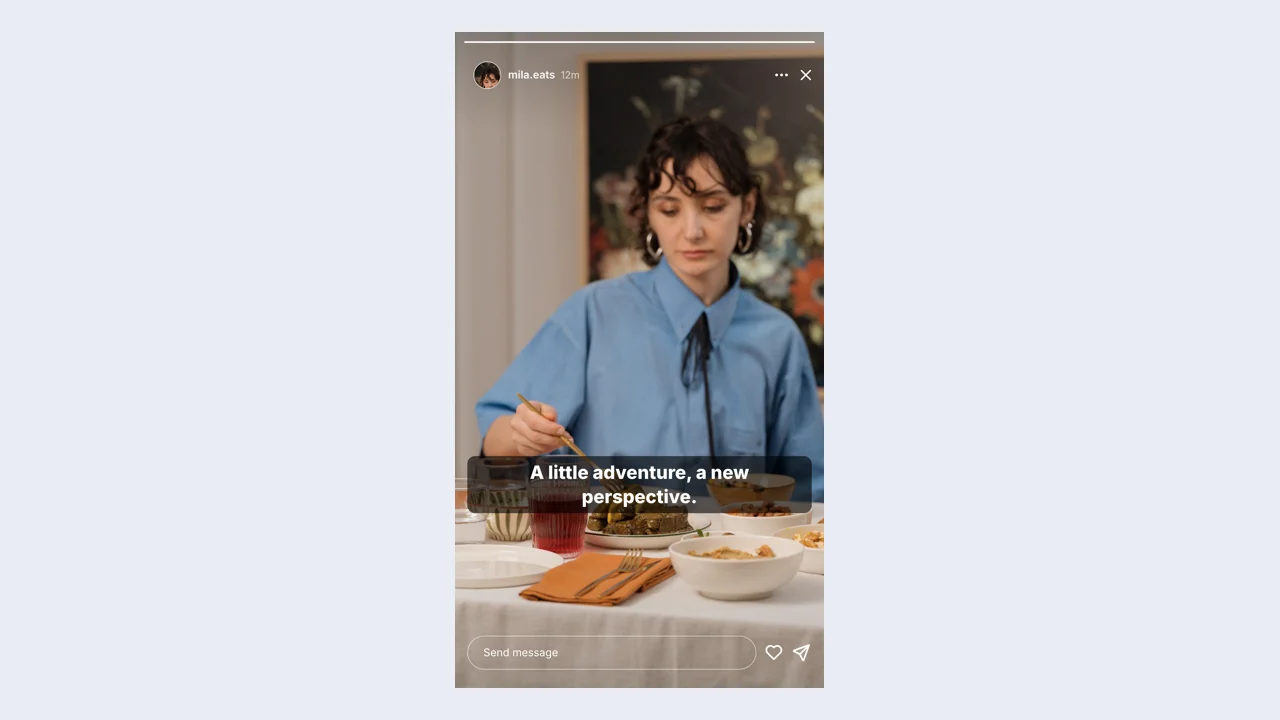
Fake IG Story example: a finished fictional story sceneOpen generator

Fake IG Story

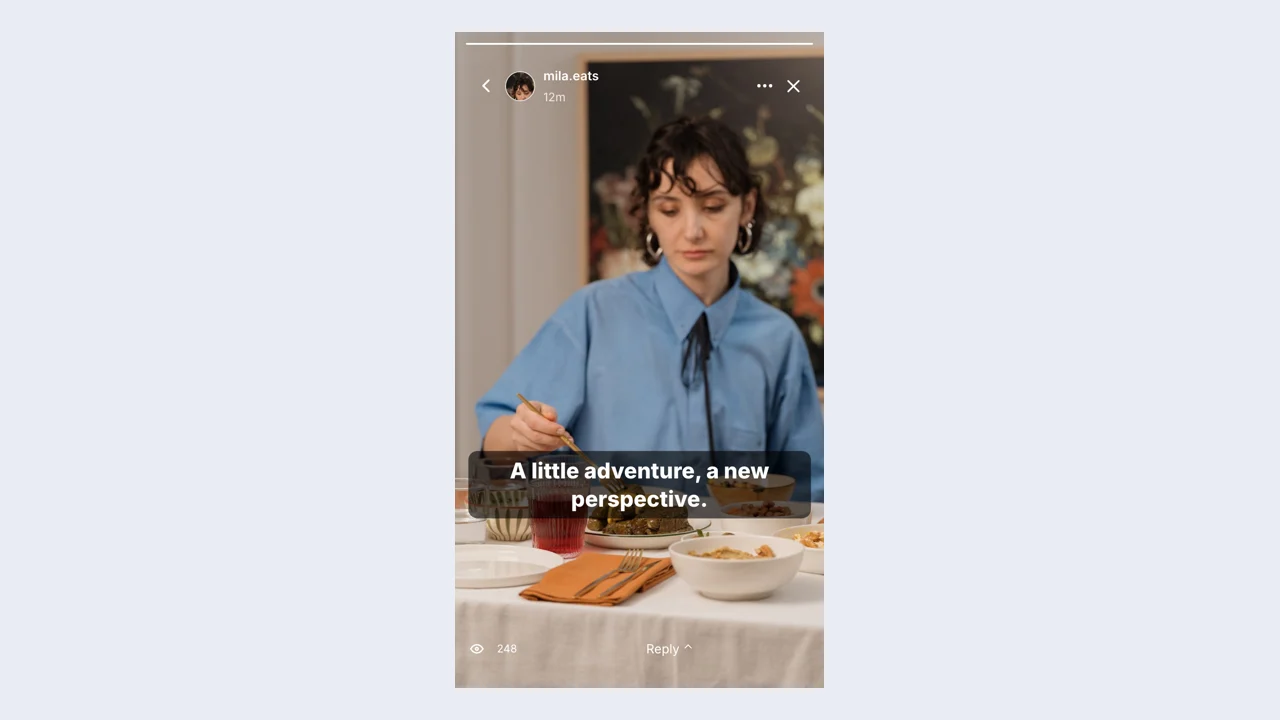
Fake WhatsApp Status example: a finished fictional story sceneOpen generator

Fake WhatsApp Status

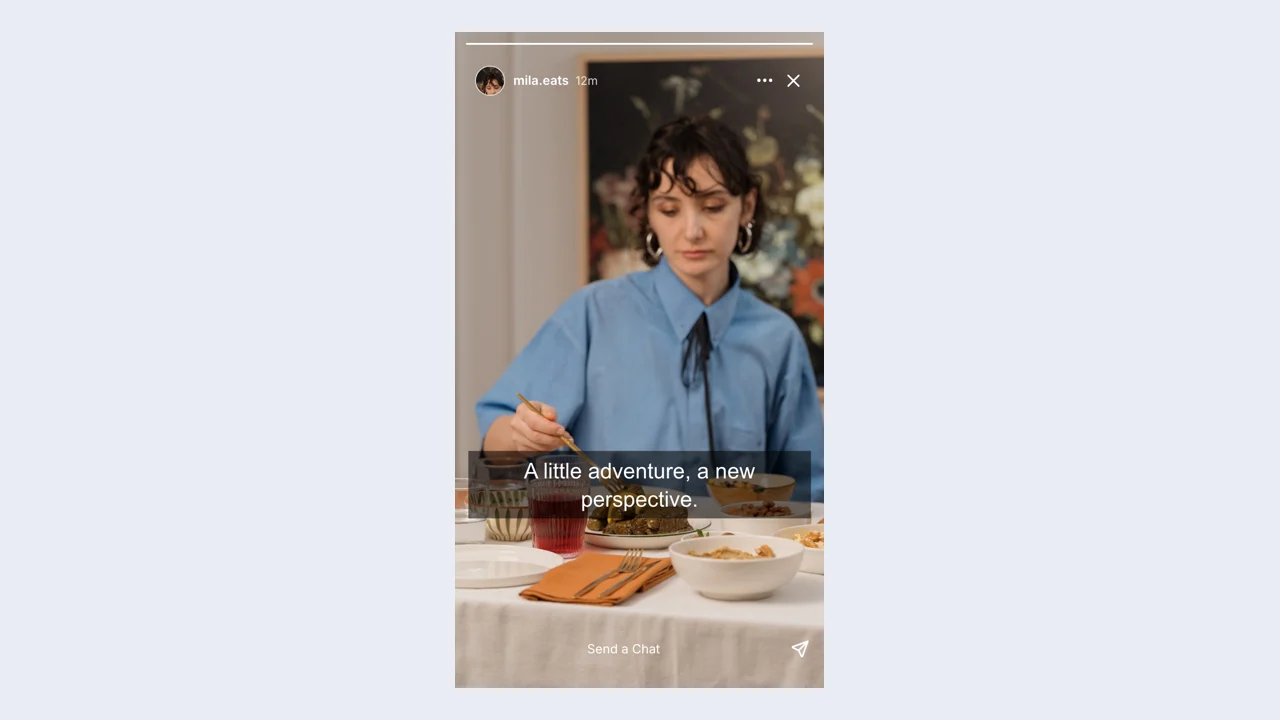
Snapchat Post Generator example: a finished fictional story sceneOpen generator

Snapchat Post Generator

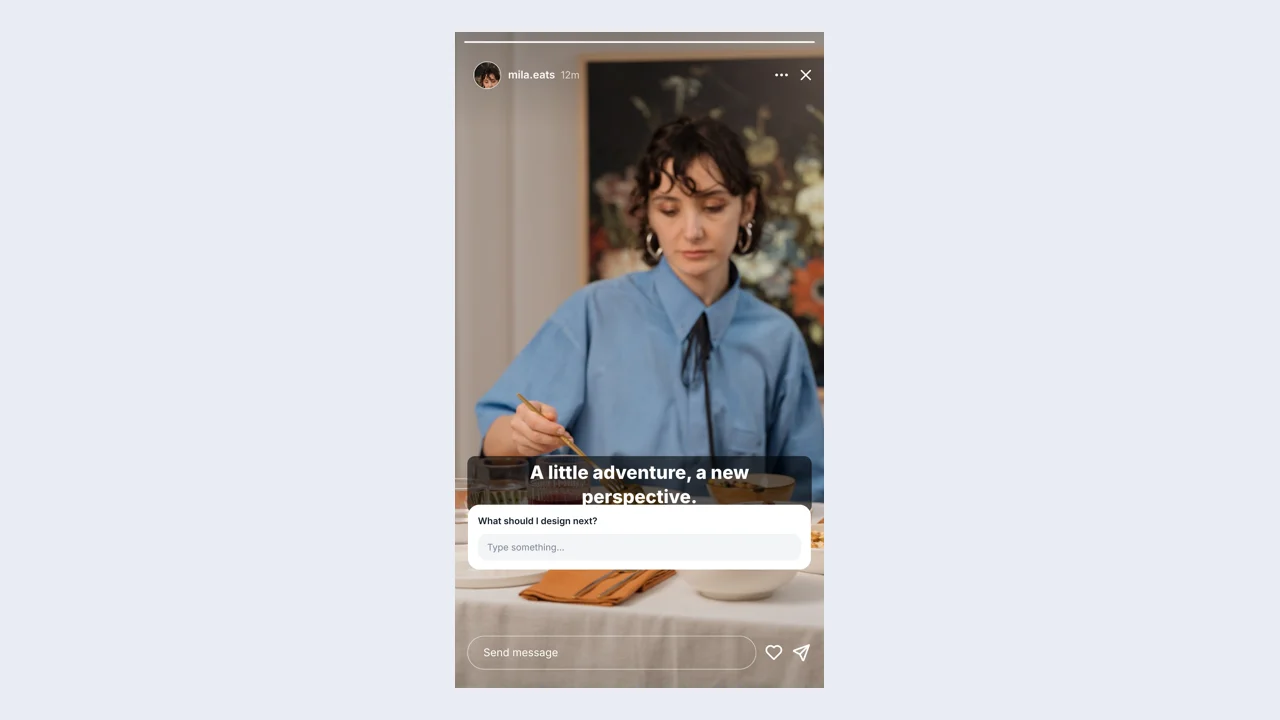
Instagram Question Box Generator example: a finished fictional question sceneOpen generator

Instagram Question Box Generator

Text Bubble Generator example: a finished fictional bubble sceneOpen generator

Text Bubble Generator

Overlays & pages

Notification Generator example: a finished fictional notification sceneOpen generator

Notification Generator

Stream Chat Generator example: a finished fictional stream sceneOpen generator

Stream Chat Generator

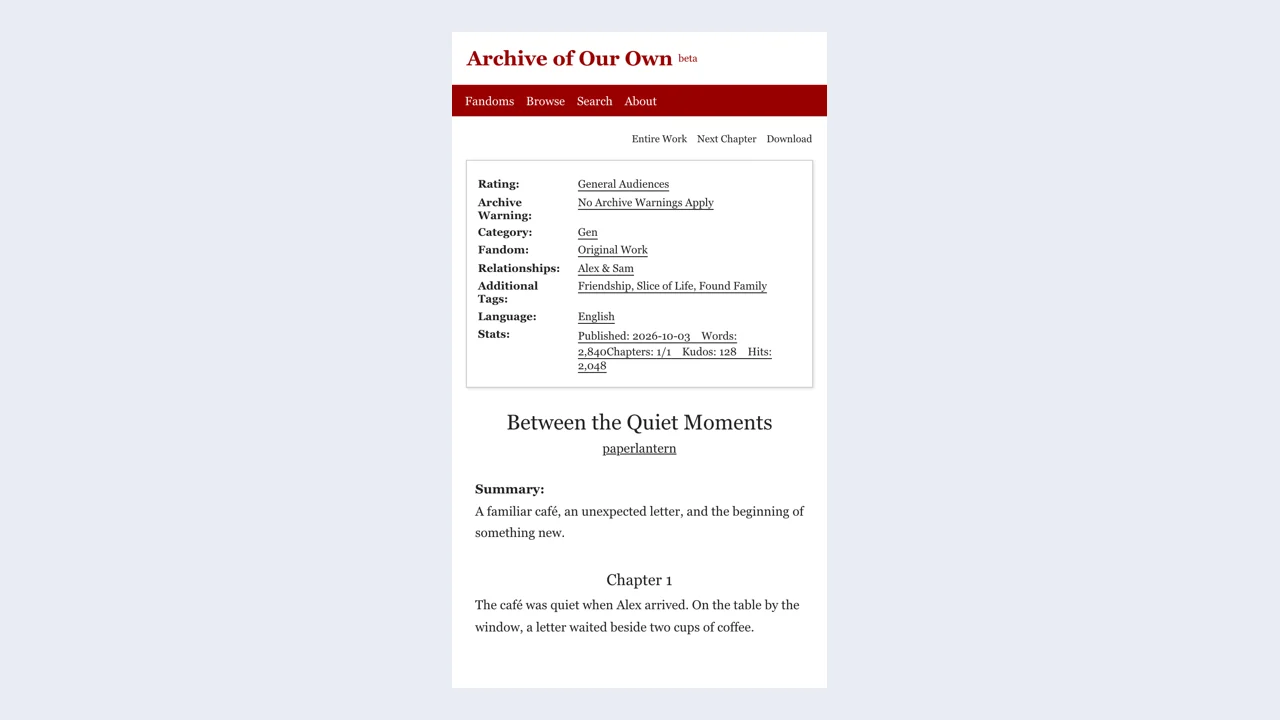
Fake AO3 Screenshot Maker example: a finished fictional ao3 sceneOpen generator

Fake AO3 Screenshot Maker

Fake chat questions

The fake chat generator helps you storyboard a scene that unfolds through messages. Write a fake chat conversation, set participant names, and check the preview before downloading your fictional exchange for a story or presentation.

The fake chat includes sender direction, message ordering, attachments, timestamps, and group names. Adjust these visible details to fit your idea, then check that they support the main content at the size your audience will see.

The fake chat supports image messages and editable profile imagery. Choose the relevant image control, upload your file, and check the preview before exporting, especially when your image contains small details or text.

Inspect the conversation screenshot at the size your audience will see. Choose the platform before refining the dialogue, because bubble widths and header details affect how each line reads. Use the fake chat maker to adjust the presentation, keeping the wording concise and the visual context consistent.

The fake chat exports a free PNG of your edited scene, with scale controls for a larger image. Download the editable project separately when you expect to change the wording or appearance later.

The fake chat keeps drafts on this device. Download an editable project file for a copy you can reopen later; browser storage can be cleared and does not synchronize your draft between devices.

The fake chat creates a visual mockup and downloadable files. It does not publish to a social account or send real messages. Present the result as fictional content when sharing your scene.

Social screenshot studio mark

Open the fake chat

Bring your idea into the fake chat. Start from the messaging preset, edit your content, and download a conversation screenshot that fits the scene.

Open the editor
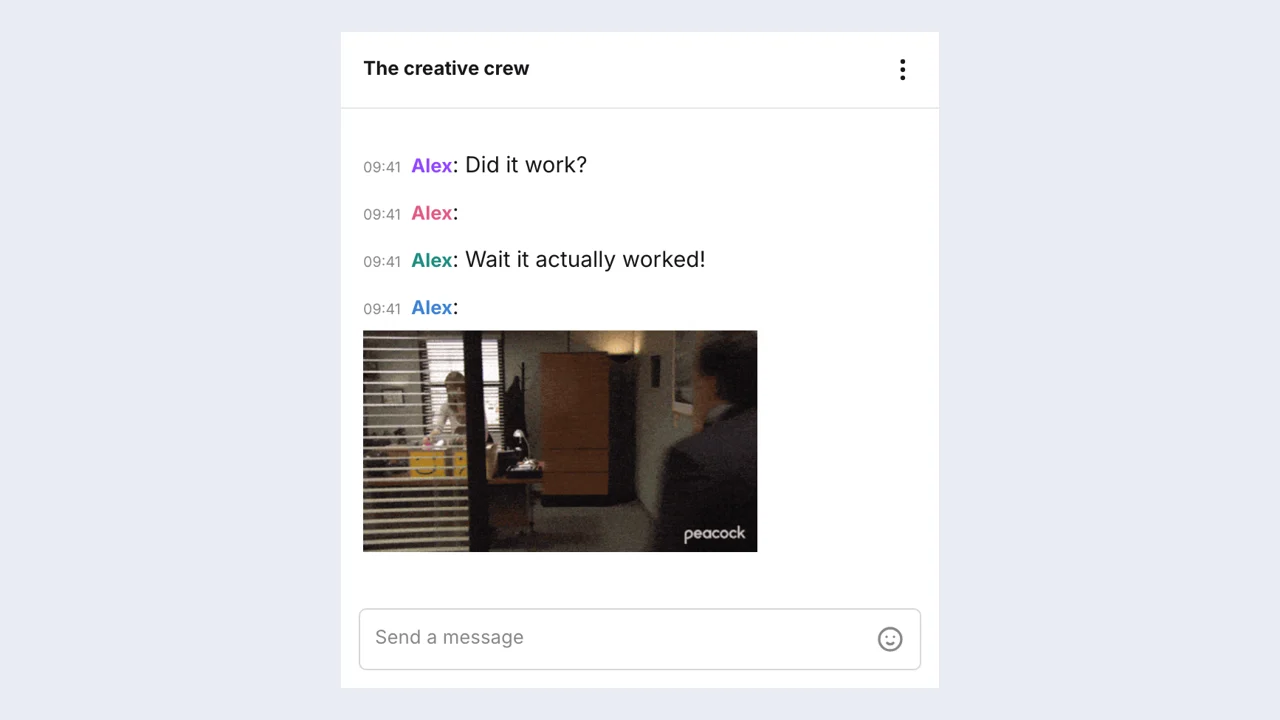
Fake Chat logoFake Chat logoFake Chat

Create fictional chats, social posts, comments and stories for videos, presentations and creative mockups. Edit the details in your browser and download your finished scene.

support@fakechatmaker.chat
Chats & messages
  • Fake Chat
  • Fake WhatsApp Chat
  • Fake Text Message
  • Fake Discord Message
  • Fake Screenshot
  • Instagram Fake Chat
  • Fake iMessage
  • Fake Messenger
  • Fake Telegram Chat
Posts & comments
  • TikTok Comment Generator
  • Fake Instagram Post
  • Instagram Comment Generator
  • Fake Twitter Post
  • Reddit Post Generator
  • Fake YouTube Video Post
  • Fake YouTube Comment Generator
Stories & stickers
  • Fake IG Story
  • Fake WhatsApp Status
  • Snapchat Post Generator
  • Instagram Question Box Generator
  • Text Bubble Generator
Overlays & pages
  • Notification Generator
  • Stream Chat Generator
  • Fake AO3 Screenshot Maker
Product
  • How it works
  • Examples
  • Pricing
  • FAQ
Legal
  • Privacy Policy
  • Terms of Service
  • Cookie Policy
© 2026 Fake Chat. All Rights Reserved